
Two-Factor Authentication at Sea: What Breaks, What Works, and What to Set Up Before You Sail
If you’ve ever been out to sea, there’s a good chance you’ve been locked out of one of your accounts at the worst possible time. You enter your username and password, everything looks normal—and then you’re asked for a verification code sent via text.
That’s when it hits you.
Your phone is in airplane mode. You’re on ship Wi-Fi. Or worse, there is no Wi-Fi at all and you’re trying to log in from a crew computer. The text never comes, the login fails, and suddenly you can’t access your email, bank account, payroll, or any other account tied to your email.
If that sounds familiar, you’re in the right place.
This post breaks down the most common Two-Factor Authentication (2FA) methods used by mariners, explains why 2FA fails at sea, and shows you exactly what to set up before you join your next ship so you’re not locked out when you need access the most.
Why Two-Factor Authentication Fails at Sea
Most online accounts today assume you’ll always have:
Reliable cellular service
A stable home internet connection
A device that stays synced to local time automatically
At sea, none of that is guaranteed.
Ships often route internet through foreign countries, phones are frequently kept in airplane mode, and time zones change while your device stays frozen. That combination breaks many 2FA and two-step verification systems, especially those that rely on SMS text messages.
Email is the most critical account to secure first. If you can’t access your email at sea, you usually can’t recover any other account.
Email Accounts: The Foundation of All Other Logins
For this example, I’ll use Gmail, since it’s one of the most common email platforms used by mariners and offers nearly every 2FA method available today.
When 2FA is enabled on Gmail, you may see options such as:
SMS text messages
Google Prompt
Recovery email
Authenticator app
Backup codes
Passkeys or security keys
Understanding how each 2FA method behaves on ship Wi-Fi is far more important than simply having them enabled.
Gmail 2FA Methods — At-Sea Verdict for Mariners
Here’s the short, practical breakdown based on real shipboard conditions:
❌ SMS Text Messages
Requires cellular service. Unreliable or unusable at sea. (Occasionally works over Wi-Fi, but this is rare and should not be relied upon.)
⚠️ Google Prompt
Requires two devices both connected to Wi-Fi or cellular. Can work, but often fails onboard due to latency and network restrictions.
⚠️ Recovery Email
Only helpful if that recovery email is already accessible—which often it isn’t, due to its own 2FA requirements.
✅ Authenticator App
Works offline after setup. Reliable if your device time is correct and aligned with the ship’s internet (IP) time zone.
✅ Backup Codes
Most reliable method at sea. Codes do not rely on internet or time sync to function.
Bottom line:
Before sailing, we recommend setting up Authenticator App, Backup Codes, or both on your email account.
What to Set Up Before You Sail
(Gmail 2FA Setup)
While you still have reliable internet at home, sign in to your Gmail account and navigate to:

Gmail → Once signed in, at the top right of the screen click the Gear Icon
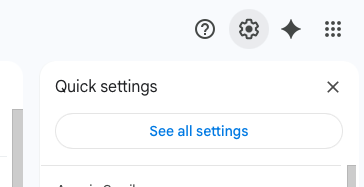
→ See All Settings

→ Accounts and Import → Other Google Account Settings
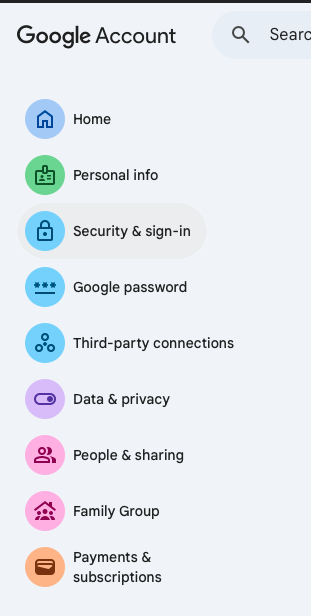
→ Security & sign-in

→ scroll down to How you sign in to Google
This is where all Gmail 2FA settings live.
Setting Up an Authenticator App for Gmail
(Recommended)
Download an authenticator app
Google Authenticator is simple and reliable, but others work similarly
In Gmail security settings, select Authenticator App
Click Set up authenticator — a QR code will appear
Open the authenticator app on your phone, tap +, and scan the QR code
A 6-digit code with a countdown timer will appear
Enter that code on your computer and confirm
Your authenticator is now active.
Screenshot suggestion: QR code setup screen + authenticator app showing code
IMPORTANT: Authenticator Apps Depend on Accurate Time
Authenticator codes are generated using time-based algorithms (UTC timestamps).
They do not require internet—but they do require your device’s time to be correct.
If you manually change your phone’s time while underway, codes may be rejected. This happens because you’re altering the device’s UTC offset, which shifts all time zones system-wide—even if the local time appears correct.
If Your Authenticator Codes Fail at Sea:
Check where your ship’s internet is routed
Google: “What is my IP”
Note the time zone of that location
On your device:
Temporarily disable Automatic Date & Time
Select the matching time zone
Re-enable Automatic Date & Time
Close and reopen the Authenticator App and try again
This resolves most authenticator issues experienced onboard ships.
Setting Up Backup Codes
(Most Reliable 2FA Method at Sea)
Backup codes are one-time-use login codes generated by Gmail. They work without internet, cellular service, or correct time.
Go to www.gmail.com
Sign in with your email and password
(2FA does not replace your password)When prompted for 2FA, select
“Enter one of your 8-digit backup codes”Gmail will generate 10 one-time codes
Save them securely
Notes app, password manager, or printed copy
When Signing In Onboard:
Click “Try another way” during login
Continue until you see Backup Codes
Enter one unused code
Cross it off your list
Once all codes are used, return to Gmail security settings and regenerate a new set.
Screenshot suggestion: Backup code generation screen
Practice Before You Leave the Port
Do not wait until you’re offshore to test this.
Before sailing:
Log out of Gmail
Turn on airplane mode
Connect to Wi-Fi only
Practice logging in using:
Authenticator App (Proof-of-concept: temporarily change your phone’s time zone, confirm the code fails, then restore it and verify it works again)
Backup codes
Doing this once at home prevents you from troubleshooting it for the first time at sea—tired, frustrated, and already locked out.
Already at Sea? 2FA Troubleshooting
(What You Can and Can’t Fix)
If you’re reading this while already onboard and locked out of an account, it’s important to set expectations upfront: in many cases, there is no workaround until you reach port.
Most 2FA failures at sea are caused by missing setup steps that require reliable internet or cellular access. That said, there are a few things worth checking once before you burn hours going in circles.
Things Worth Checking
Authenticator App Issues
Confirm your device’s date and time are set to Automatic
Verify your time zone aligns with the ship’s internet routing
Close and reopen the Authenticator App
Backup Codes
Check saved notes, password managers, or printed documents
Ensure you’re entering an unused code
Google Prompt / App-Based Prompts
Confirm both devices are connected to the same network
(If you can only sign one device in at a time, you may be able to temporarily borrow a shipmate’s login to get both devices online long enough to complete the prompt. Once access is restored, immediately set up an Authenticator App or backup codes.)
Open the Gmail app manually and wait for the prompt
(Shipboard internet often has very high latency. Prompts may take 30–120 seconds to appear—or may never arrive at all.)
Things That Usually Won’t Work
Waiting for SMS texts over ship Wi-Fi
Repeated login attempts hoping the code eventually works
Guessing time settings without understanding UTC offsets
Using a recovery email that also requires 2FA
If none of the above apply, you’ll need to wait until you regain reliable connectivity in port. This is exactly why 2FA preparation before sailing is critical.
A Note on Terminology:
2FA, Two-Step Verification, and Security Codes
Different platforms use different names:
Two-Factor Authentication (2FA)
Two-Step Verification
Security Codes
Login Verification
They all refer to the same concept: something you know (password) plus something you have (code or device).
For clarity, this post uses 2FA throughout—but don’t be thrown off by different labels in account settings.
Final Takeaway for Mariners
Most login problems at sea aren’t caused by bad passwords—they’re caused by poorly prepared 2FA settings.
If you:
Secure your email first
Enable an Authenticator App
Generate and store backup codes
Keep your device time in sync
You’ll save yourself hours of frustration and avoid being locked out when access matters most—especially while underway.
If you want a one-page version of everything covered here, you can download the Before You Sail: 2FA Checklist for Mariners